
How to Connect Your Website to Your CRM
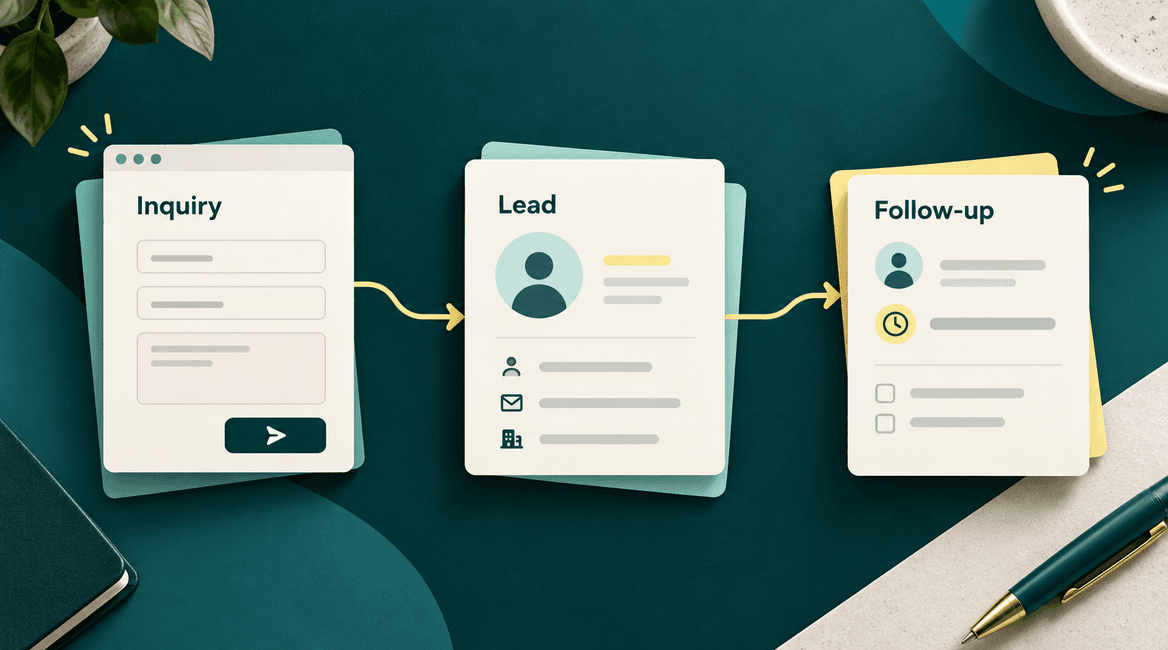
Website CRM integration should do more than send a copy of a form submission to an inbox. A useful connection creates or updates the right record, preserves the inquiry, assigns responsibility, and gives someone a clear next action.
Consider a hypothetical South Florida home-services company. A visitor requests an estimate through its website, but the office currently copies the email into a CRM and forwards it to a salesperson. The company wants to reduce duplicate entry and make missed follow-ups visible. Here is how to plan that workflow.
A lead is captured properly when its details, owner, and next action are visible in the system your team actually uses.

From Website Inquiry to Follow-Up
1. Define what should happen after submission
Write the desired outcome before choosing a connector. In our example, every valid inquiry should be saved, linked to a contact, assigned to the appropriate service team, and given a follow-up task. The visitor should receive a clear acknowledgment without an unsupported promise about appointment availability.
Decide who owns inquiries outside the service area, requests with missing information, and messages that do not match a known service. An unassigned queue needs a named owner and a review schedule. Otherwise automation can move the bottleneck without solving it.
2. Collect enough information to take the next step
Ask for the fields the team needs: contact name, a way to respond, requested service, service location if relevant, and a short description. Separate required fields from helpful optional details. A first inquiry usually does not need the entire customer record.
Use appropriate labels and input validation, and explain what happens after the visitor submits. Treat a service inquiry and a marketing subscription as separate choices. Record the relevant consent and source information your business requires without collecting unnecessary data.
3. Map form fields to CRM properties
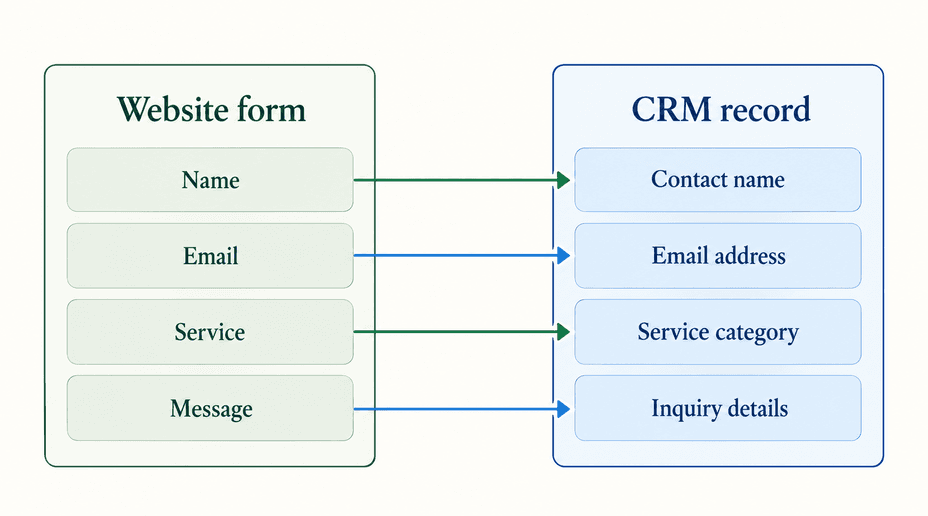
Create a small mapping document before connecting systems. “Full name” on the form might need to become separate first and last name properties, while “Service needed” must match the CRM's allowed service categories. Decide how to handle a name that cannot be reliably split rather than silently guessing.
- Contact details: map name, email, and phone, with consistent formatting and clearly defined required values.
- Inquiry details: save the requested service and original message as part of this specific inquiry.
- Source: retain the form or landing page and available campaign details, without claiming they always identify the full customer journey.
- Ownership: map the selected service or territory to a valid team or an exception queue.
Keep the original message available even if you extract a summary. Agree which system is authoritative for each field. A new form submission should not accidentally erase a staff member's verified information with a blank value.
4. Choose the simplest integration that fits
A CRM's native website form may cover the workflow with little custom development. A supported connector or automation service can work when you need a different form or a few additional steps. A custom integration becomes useful when routing, permissions, data handling, or failure recovery exceed what those options support.
Evaluate the actual plan and account permissions. Check access to the required fields, automation features, submission volume, and API limits before committing. Do not choose a custom build solely because your website itself is custom.
5. Decide how repeat inquiries should behave
One contact can make several requests. The integration may need to update that contact while creating a separate inquiry or deal. Decide which object represents the person and which represents the new work so a later submission does not hide an earlier request.
Duplicate behavior varies by platform and submission method. For example, HubSpot documents email-based contact deduplication for form submissions, with additional details and exceptions. Verify your own setup rather than assuming every CRM or custom API behaves the same way.
Use a stable submission identifier so a retry does not create a second inquiry or send the same acknowledgment twice. Matching only by a person's name is unreliable. Decide how to handle shared email addresses or a returning customer using different contact details.
6. Assign the lead and create a useful follow-up
In the home-services example, a selected service category can route the inquiry to the relevant team. A task might tell the owner to review the location and call the customer during working hours. Choose a response target the business can actually meet, including evenings, holidays, and staff absences.
Start with explicit rules. AI is unnecessary when a drop-down already provides the category. If free-text interpretation is useful later, preserve a manual review path. Stop or update automated follow-ups when someone responds, books, declines, or opts out of a communication that requires it.
7. Design for failed deliveries
The website should not depend on everything working at the same instant. Decide where a successfully accepted submission is retained, how delivery is retried, and how staff learn about unresolved failures. If the CRM is unavailable, the inquiry should remain recoverable.
Keep private integration credentials on the server, restrict their access, and avoid exposing sensitive message contents in logs or alerts. Include spam controls and rate limits appropriate to the form. A success message should reflect that the inquiry has been accepted safely, not falsely imply that every downstream task has finished.
8. Test the complete workflow with realistic cases
Try a new contact, a returning contact, missing optional information, an unsupported service, repeated submission, and a simulated CRM failure. Confirm the record, original message, owner, task, and acknowledgment for each case. Test on a phone as well as a desktop.
After launch, compare accepted submissions with successfully delivered inquiries and unresolved exceptions. Track time to first human response separately from automatic acknowledgments. An automated email is evidence of receipt, not evidence that a salesperson has taken responsibility.
Website-to-CRM Launch Checklist
- Define the inquiry, contact, and deal records needed for your process.
- Document each form field, destination property, and allowed value.
- Preserve the original inquiry and a unique submission identifier.
- Set routing rules and a responsible owner for exceptions.
- Separate service communications from optional marketing preferences.
- Test duplicate handling, retries, missing fields, and unavailable services.
- Confirm that private credentials stay out of the browser.
- Monitor delivery failures and time to first human response.
Keep the Integration Accountable After Launch
Assign someone to review failed submissions and maintain the mapping when forms or CRM fields change. Recheck routing when territories, service offerings, or staff responsibilities change. A technically working connector can still deliver leads to the wrong person if the business rules are outdated.
DevConex can help connect a website to the systems behind it. Tell us which website form and CRM you use, what happens after an inquiry arrives, and where your team currently loses time.
FAQs
Do we need a new website to connect our CRM?
Often you can connect the existing site by embedding a supported form or adding a connector. Review the current form, platform, and required behavior before assuming a redesign is necessary.
Should every inquiry create a new contact?
Not necessarily. Returning customers may already have a contact record but still need a separate inquiry or deal. Establish matching and record-creation rules that preserve both the person and each request.
Can the integration automatically assign salespeople?
Yes, if your CRM or integration supports the required rules. Define territory, service, availability, and fallback behavior. Test what happens when the normal owner is unavailable or no rule matches.
How do we know whether automation improved lead handling?
Compare manual entry time, undelivered submissions, duplicate inquiries, unresolved exceptions, and time to first human response. Use the same definitions before and after launch so the comparison reflects the actual process.