
How to Add Push Notifications to a Mobile App
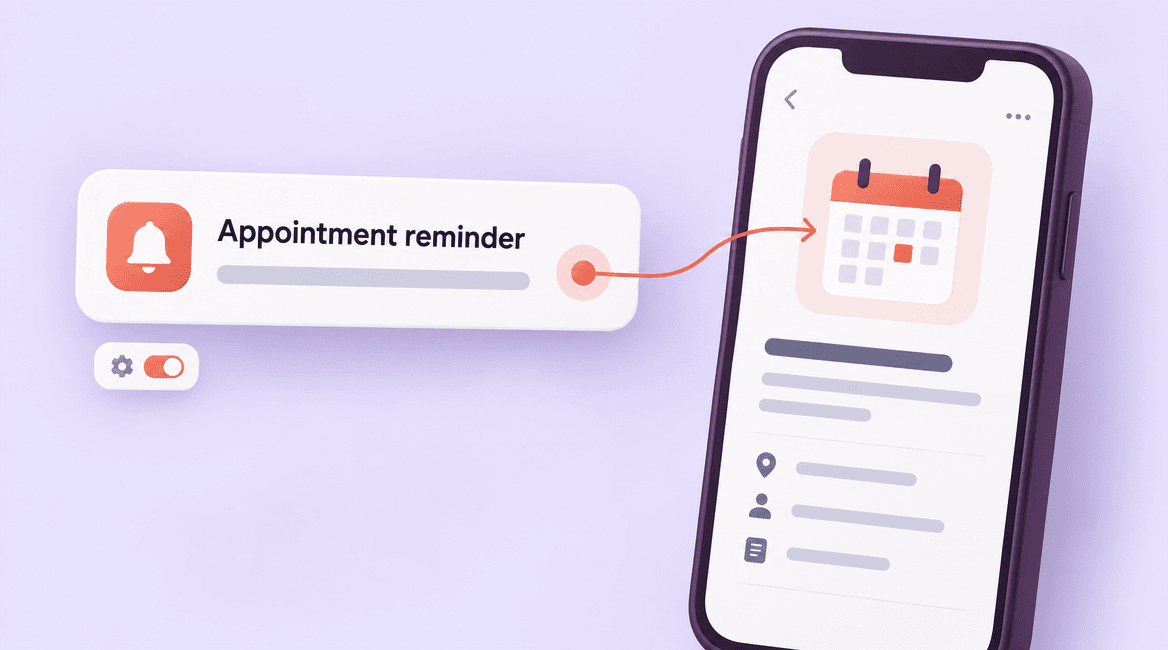
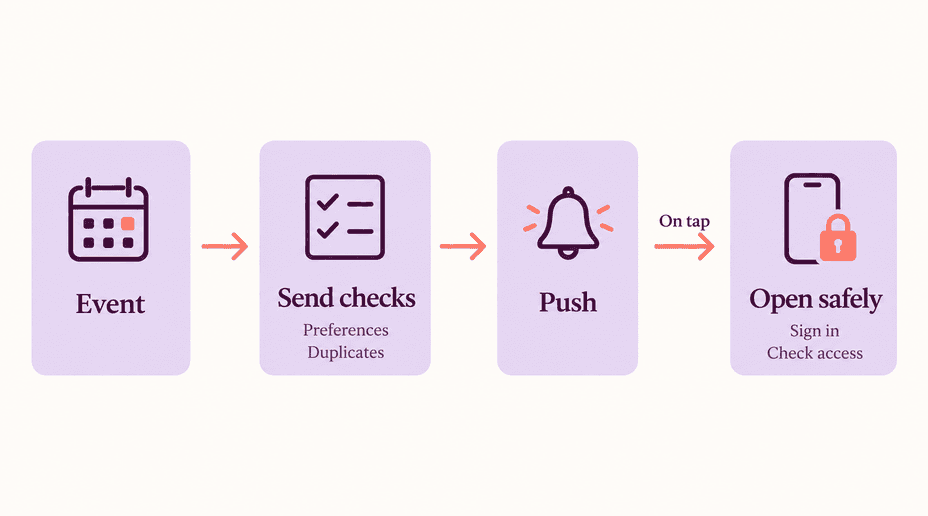
Adding push notifications to a mobile app involves more than connecting a messaging service. You need to decide when an alert is useful, which account and installation should receive it, what happens when the user taps it, and how to avoid duplicate or stale messages.
This guide follows a hypothetical appointment app sending a reminder about an upcoming visit. The example keeps the implementation concrete, but the same principles apply to delivery updates, task assignments, and account activity.
The central rule is to treat push as a best-effort attention channel. Your server and in-app records remain the source of truth. A provider accepting a message does not prove that the customer saw it.
A useful notification has a reason, a recipient, an expiry, and a destination. Define all four before writing the send call.

Build the complete notification workflow
1. Define the event and the user benefit
Write a short contract for each notification type. The appointment reminder needs a booking identifier, intended recipient, scheduled send time, expiry time, destination, and cancellation condition. If the appointment moves, the old reminder must become ineligible.
Separate transactional updates from promotional messages. Let people understand the difference in settings and avoid using an operational permission as a reason to send unrelated marketing. Decide which events belong in an in-app inbox even when push permission is denied.
For sensitive workflows, use discreet wording on the lock screen. The notification can say that an update is available without containing private appointment details. Fetch the actual record after the user opens the app and passes the normal access checks.
2. Choose the delivery path
On Apple devices, remote notifications ultimately use Apple Push Notification service, or APNs. Firebase Cloud Messaging can provide a cross-platform integration, including an APNs configuration for Apple devices. Managed notification services can add scheduling and audience tools, but they do not remove your responsibility for identity and business rules.
Keep send credentials on trusted server infrastructure. The app registers for messaging and reports its current delivery registration to your backend through an authenticated endpoint. It should not hold credentials that allow arbitrary notifications to be sent to other users.
Select a service based on the workflow, supported platforms, operational visibility, and team capacity. Do not build a second scheduling system if a managed service already meets the requirement, but confirm how cancellations, retries, and account changes work.
3. Ask for permission at a meaningful moment
Explain the benefit when the user takes an action that makes it relevant, such as creating a first appointment and choosing reminders. Respect refusal and provide notification settings without repeatedly interrupting the user.
Apple's permission guidance recommends asking in context. On supported Android versions, notification runtime permission also needs handling. Test your target operating systems and SDK configuration rather than assuming the same prompt appears everywhere.
App preferences and system permission are separate. A person can enable appointment reminders inside your app while disabling notifications in device settings. Show the distinction clearly and keep the core booking experience usable when alerts are unavailable.
4. Associate registrations with installations and accounts
Do not store a single permanent “device token” on the user record and assume it will always work. A user may have several installations, registrations may change, and one device may switch accounts. Track installation identity, current provider registration, account association, platform, and update time.
Upsert registration changes through an authenticated request. On logout or account switch, remove or replace the account association according to your design. Clean up invalid registrations based on provider responses. Firebase's registration-management guidance covers freshness and stale registrations; use the registration mechanism supported by your chosen SDK version.
Recheck recipient eligibility near send time. A reminder queued yesterday should not be sent to a device now associated with another person. A notification already handed to the push service may still arrive later, which is another reason to keep payloads discreet and enforce authorization when opened.
5. Give every business event a stable identity
Create a stable notification-event identifier and a delivery record for the intended recipient and installation. Use a uniqueness rule so replaying the same scheduling event does not create unlimited duplicate send jobs. Persist the business change and the notification intent reliably, for example through a transactional outbox pattern.
There is still an uncertainty window: the provider may accept a request while your worker loses the response. Retrying can produce another delivery. Do not promise exactly-once push delivery. Use provider collapse or replacement behavior where appropriate for an update, and application-side handling to avoid duplicating in-app records or actions.
For appointment reminders, include the booking revision in the eligibility check. A job created for an older time should be skipped after rescheduling. Distinguish a legitimate updated reminder from a duplicate of the original event.
6. Decide who displays the notification
Notification and data messages can behave differently depending on whether the app is foregrounded or backgrounded. Firebase documents these differences in its message-types guide.
Choose one display strategy for each app state. A common duplicate comes from letting the platform display a message automatically and also creating a local notification for the same arrival. In the foreground, a quiet in-app banner may be more appropriate than another system alert, especially if the user is already viewing the appointment.
Avoid treating background messages as a guaranteed way to run arbitrary work immediately. Operating-system scheduling and delivery conditions can interfere. Refresh the authoritative state when the app becomes active.
7. Make the tap destination safe and useful
Include a supported destination type and record identifier rather than accepting any arbitrary URL as an internal command. When the user taps, initialize the app, establish the current session, check access, and then load the current record.
If sign-in is required, preserve the intended destination and resume after authentication. If the appointment was canceled or removed, show an explanatory state. If the account no longer has access, do not reveal the record simply because its identifier arrived in a notification.
Test cold starts as well as an already-open app. Navigation that works only when the application is running is an incomplete implementation.
8. Set timing, expiry, and preference rules
Store schedule intent in a way that preserves the relevant time zone. Decide whether a reminder follows the appointment's location or the customer's local time. Recalculate queued reminders when the event changes, and stop retrying after the message is no longer useful.
Apply category preferences and quiet-hour rules at send time. For events that need a different escalation path, design it explicitly rather than assuming a push alert will arrive. Keep any email or SMS fallback consistent with the user's choices and the actual importance of the event.
Before you launch: a practical checklist
- Each notification type has a defined trigger, recipient, expiry, and destination.
- System permission and in-app preferences are handled separately.
- Registrations can refresh, expire, and move between account associations safely.
- Duplicate scheduling events do not create duplicate in-app records or unlimited send jobs.
- Foreground and background display behavior has one clear owner.
- Tapping a notification rechecks authorization and handles stale destinations.
- Rescheduling, cancellation, quiet hours, and time zones affect send eligibility.
- Logs distinguish queued, attempted, provider-accepted, failed, and opened events.
Test the cases that usually get missed
Use physical devices and the same push environment and signing configuration intended for the test build. Write expected results before sending messages. These are acceptance scenarios, not claims that a particular implementation has already passed them.
- Deny permission: booking still works, and the reminder remains visible through the intended in-app experience.
- Rotate or replace a registration: new sends use the current association and invalid records are retired.
- Switch accounts: a new notification does not expose the previous account's appointment.
- Replay a scheduling event: the backend does not create a second business notification.
- Reschedule before send time: the outdated reminder is skipped and the new schedule is respected.
- Tap from a closed app with an expired session: sign-in completes, then the correct authorized destination opens.
- Deliver an old message after cancellation: the app displays current state rather than reviving the booking.
Measure usefulness, not just send volume
Monitor provider errors, invalid registrations, send delays, and duplicate reports. Where supported, delivery and open measurements can help, but they are not interchangeable and may be incomplete. Keep personal payload content out of routine logs.
Review whether reminders help customers complete the intended task and whether users disable the category. More notifications are not automatically a better product. Start with one valuable event and expand only after the workflow is dependable.
FAQs
Are push notifications guaranteed to arrive?
No. Connectivity, device settings, expiry, operating-system behavior, and provider conditions can affect delivery and presentation. Important state must remain available in the app, and critical workflows need a deliberately designed escalation process.
Why does the same notification appear twice?
Possible causes include duplicate jobs, uncertain retries, multiple installation records for the same destination, or both automatic and manual display. Trace a stable event identifier through scheduling, sending, and client handling before changing the UI.
Do push notifications replace an in-app inbox?
No. Push draws attention; an inbox or normal application screen provides a durable place to see current information. The two should reference the same business event without duplicating the underlying action.
What should a developer deliver besides the integration?
Ask for preference behavior, registration lifecycle handling, destination routing, test results, and operational monitoring. Plan your notification workflow with DevConex around the events customers actually need.